
4K streaming needs a controlled workflow
A 4K YouTube Live stream can quickly expose weak points: storage speed, GPU load, codec choice, bitrate, keyframe interval, audio routing and upload stability.
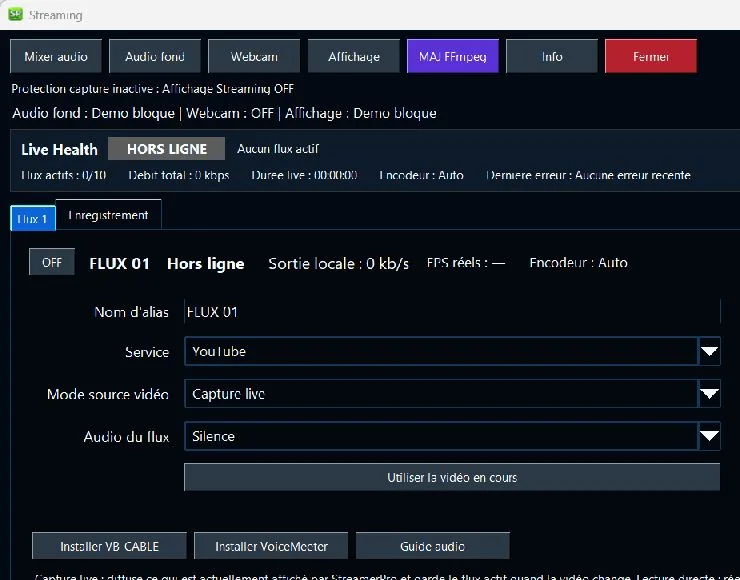
StreamerPro keeps the setup local and repeatable. You can test 4K files, playlists, overlays, RTMP output and local recording before relying on the machine for a long-running stream.
Practical 4K checklist
Use a recent GPU when possible
Keep upload bandwidth above the selected bitrate
Start with H.264 for compatibility
Use H.265 only where the target workflow supports it
Test several hours before 24/7 use
Keep local recording for diagnostics
Suggested starting points
| Use case | Resolution | FPS | Codec | Suggested bitrate |
|---|---|---|---|---|
| 4K test | 3840x2160 | 30 | H.264 | 15000-20000 kb/s |
| 4K quality | 3840x2160 | 30 | H.264 / H.265 | 20000-25000 kb/s |
| 1440p fallback | 2560x1440 | 30 | H.264 | 9000-13000 kb/s |
Related English pages
Guide
24/7 live video software
Continuous local video playout and RTMP streaming.
Guide
YouTube 24/7 live streaming software
Create continuous YouTube Live channels from local videos.
Guide
OBS alternative for 24/7 streaming
Automated playout instead of fragile manual scenes.
Guide
Digital signage software for Windows
A Windows PC as a flexible 4K signage player.
Guide
4K YouTube Live streaming
Prepare 4K YouTube Live from a local Windows PC.
Guide
Local 24/7 video streaming
Use your own PC, files, SSD or NAS for local playout.
Guide
Local video streaming vs cloud
Compare recurring cloud fees with local Windows playout.
FAQ
Can StreamerPro stream 4K to YouTube Live?
StreamerPro supports 4K-oriented workflows, but the real result depends on the PC, GPU, codec, bitrate, upload bandwidth and YouTube requirements.
Should I use H.264 or H.265?
H.264 is usually the safest compatibility choice. H.265 may reduce file size but depends on hardware and platform support.
What if the stream freezes?
Lower bitrate first, verify GPU load and storage speed, then test resolution and codec changes.